Website Down or Server Down? Here’s How to Tell the Difference
Imagine you open your website and it does not load.
You refresh the page. Nothing happens. At first, it is easy to think, "The server is down." But that is not always the case. Your server might still be online while your website is unavailable because of an application error, stopped service, database problem, SSL issue, or another configuration problem. Understanding the difference can help you find the problem much faster.
What Does "Website Down" Actually Mean?
A website being down simply means that visitors cannot use it normally. They might see:
- A timeout
- A 500 error
- A 502 Bad Gateway error
- A 503 Service Unavailable error
- A database connection error
- An SSL warning
- A completely blank page
But these errors do not automatically mean that the entire server is offline. Your Linux server could still be running normally in the background.
Website Down Does Not Always Mean Server Down
Think of your server as a building. The building can still have electricity, lights, and working doors, while one shop inside is closed. The same thing can happen with a server. Your Linux server may be online, but one part of your website's stack may have stopped working.
For example: Server → Web Server → Application → Database → Website If the application stops, visitors may see an error even though the server itself is perfectly healthy.
"A website can be down while the server is still online."
1. Check if the Server Is Online
The first question should be simple: Is the server responding at all? If the server has stopped sending monitoring heartbeats, it may actually be offline. This can happen because of:
- Server crashes
- Power or hosting problems
- Network problems
- Operating system failures
- Severe resource exhaustion
- Manual shutdown
A server monitoring system can detect this separately from a normal website error. InfraCaptain, for example, monitors the server heartbeat and can trigger a Critical Offline alert when no heartbeat is received for about 3 minutes.
2. Check the Web Server
Your Linux server may be online, but the web server responsible for handling website requests could have stopped. Common web servers include:
- Nginx
- Apache
If the web server is not running correctly, your server can still respond to other requests while your website remains unavailable. This is why checking service status is important when investigating downtime. InfraCaptain's dashboard includes service and process information alongside normal CPU, RAM, disk, and network monitoring.
3. Check Your Application
Sometimes the web server is working perfectly, but your application has a problem. For example, your Laravel, PHP, Node.js, Python, or other application could:
- Crash
- Get stuck
- Use too much memory
- Consume too much CPU
- Stop responding
- Encounter an unexpected error
In this situation, restarting the entire server may not be necessary. The actual problem may be inside the application or one of its processes.
4. Check the Database
Your website may also depend on a database. If the database service stops or becomes unhealthy, your website may show errors even though the Linux server itself is online.
For example: A customer opens your website → the application tries to read data → database does not respond → the website displays an error. From the customer's perspective, the website is down. From the server's perspective, the server may still be running. This difference is important when troubleshooting.
5. Check CPU and Memory
A server can technically be online while becoming almost unusable. For example, imagine your server has:
- CPU: 98%
- RAM: Almost full
- Disk: 95%
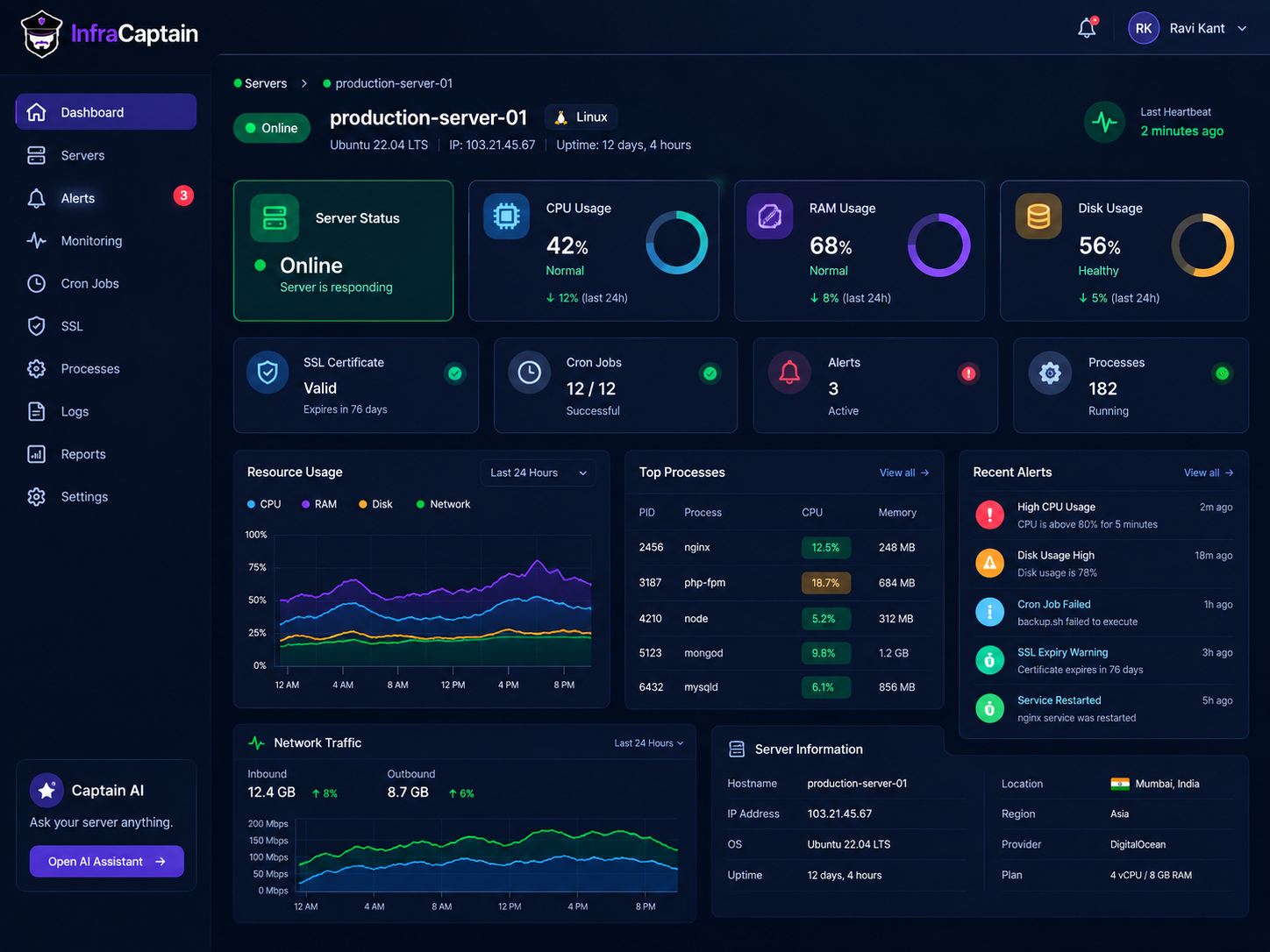
The server may still respond, but applications can become extremely slow or start failing. A sudden traffic spike, runaway process, memory leak, or background job can consume resources and affect your website. This is why server monitoring should not only ask: "Is the server alive?" It should also ask: "Is the server healthy?"
6. Check Your SSL Certificate
Sometimes your server and website are both running, but visitors still cannot access the site normally. One possible reason is an SSL certificate problem. For example:
- Certificate expired
- Hostname does not match
- Certificate configuration is incorrect
The server can remain online while browsers show a security warning to visitors. InfraCaptain monitors SSL certificate status and can alert you before certificates expire, including warning and urgent thresholds.
7. Check Scheduled Jobs and Cron
Some website problems are caused by background tasks rather than the website itself. Linux servers often use cron jobs for scheduled work such as:
- Backups
- Report generation
- Data processing
- Email tasks
- Cleanup jobs
- Scheduled imports
Imagine your backup runs every night. One day the cron job silently fails. Your website may continue working, so nobody notices. Days later, something goes wrong and you discover that your backups have not been running. This is why monitoring scheduled jobs can be just as important as monitoring website availability. InfraCaptain automatically tracks active cron jobs, missed executions, execution history, and duration.
So, How Do You Find the Real Problem?
When your website stops working, don't immediately restart the server. Start by checking the problem from the outside in.
- Is the server online?
- Is the web server running?
- Is the application working?
- Is the database available?
- Is CPU unusually high?
- Is memory running low?
- Is disk space nearly full?
- Is the SSL certificate valid?
- Are important services running?
- Did a scheduled cron job fail?
This simple process can help you narrow down the cause much faster.
Website Down vs Server Down
Website Down
- Website does not load
- Server may still be online
- Application may have failed
- Web server may have stopped
- SSL may have a problem
- Database may be unavailable
Server Down
- Server stops responding
- Monitoring heartbeat stops
- Applications become unavailable
- Services cannot operate normally
- SSH may become inaccessible
- Hosting or infrastructure may have failed
The important point is that website availability and server health are related, but they are not exactly the same thing.
How Monitoring Makes This Easier
Without monitoring, you may discover a problem only after a customer reports it. Then you have to log into the server, check commands, search logs, inspect processes, and try to figure out what changed. That can take valuable time. With server monitoring, you can see important infrastructure signals continuously and receive alerts when something unusual happens. InfraCaptain monitors CPU, RAM, disk, network, processes, services, cron jobs, SSL information, and security events, with dashboard data updated every 60 seconds.
What Happens When an InfraCaptain Alert Arrives?
Instead of discovering a problem after customers start complaining, you can receive an alert when the underlying server condition changes. For example:
Server Offline Your server stops sending heartbeats. CPU Alert CPU remains above the configured threshold. Disk Alert Storage is trending toward being full. Cron Alert A scheduled job fails to run. SSL Alert
A certificate is approaching expiration. These alerts help you investigate the problem before it becomes a bigger incident. InfraCaptain's alert system includes severity levels such as Warning and Critical.
You Don't Always Need to Be a Linux Expert
One of the difficult parts of server problems is understanding why something happened. Seeing: CPU: 88% doesn't tell you what caused it. Was it a traffic spike? A background process? A scheduled job? A memory problem? A stuck application?
This is where context becomes useful. InfraCaptain's Captain AI can use server context such as process states, resource history, cron records, and log patterns to answer questions such as: "Why is my CPU at 88%?" or "Why did backup.sh fail last night?" The goal is to turn technical server information into an explanation that is easier to understand.
"Don't just ask whether your server is online. Ask whether everything running on it is healthy."
A Simple Example
Let's say your customers suddenly report that your website is not working. You check the server. The server is online. CPU looks normal. RAM looks normal. Disk has plenty of free space. Then you notice that the web application process has stopped. Now you know something important: The server is not down. The application is down. Instead of spending an hour troubleshooting the entire server, you can focus directly on the application and its service. This is the advantage of having visibility into the different layers of your infrastructure.
Conclusion
When a website stops working, the first question should not always be: "Is my server down?" The better question is: "Which part of my infrastructure is causing the problem?"
Your server could be offline, but your website could also fail because of a stopped service, application issue, database problem, high resource usage, SSL error, or missed background job. Good monitoring helps you see these signals before they turn into a major incident. InfraCaptain is designed to monitor more than simple uptime. It watches server health, processes, services, cron jobs, SSL, security events, and resource usage, while Captain AI helps explain what is happening.
The goal is simple: Find the problem faster. Fix it sooner. And whenever possible, fix it before your users notice.
Need Help with Your Infrastructure?
Get expert assistance with monitoring, DevOps, and infrastructure management.
Contact Us